
Own photos → finished post
How to turn product photos into an Instagram carousel
Start with one clear product photo, write a short slide sequence, and build it with a consistent layout. Keep the product visible, use facts you can verify, and finish with one useful action.
Here is a manual three-slide example you can follow in a design editor, from the source photo to the caption and export checklist.
By Zoisial · Updated
Prepared with AI assistance. Source photo: Zoisial’s Luce Pasta demo; teaching layouts created for this guide.
Start with your photo
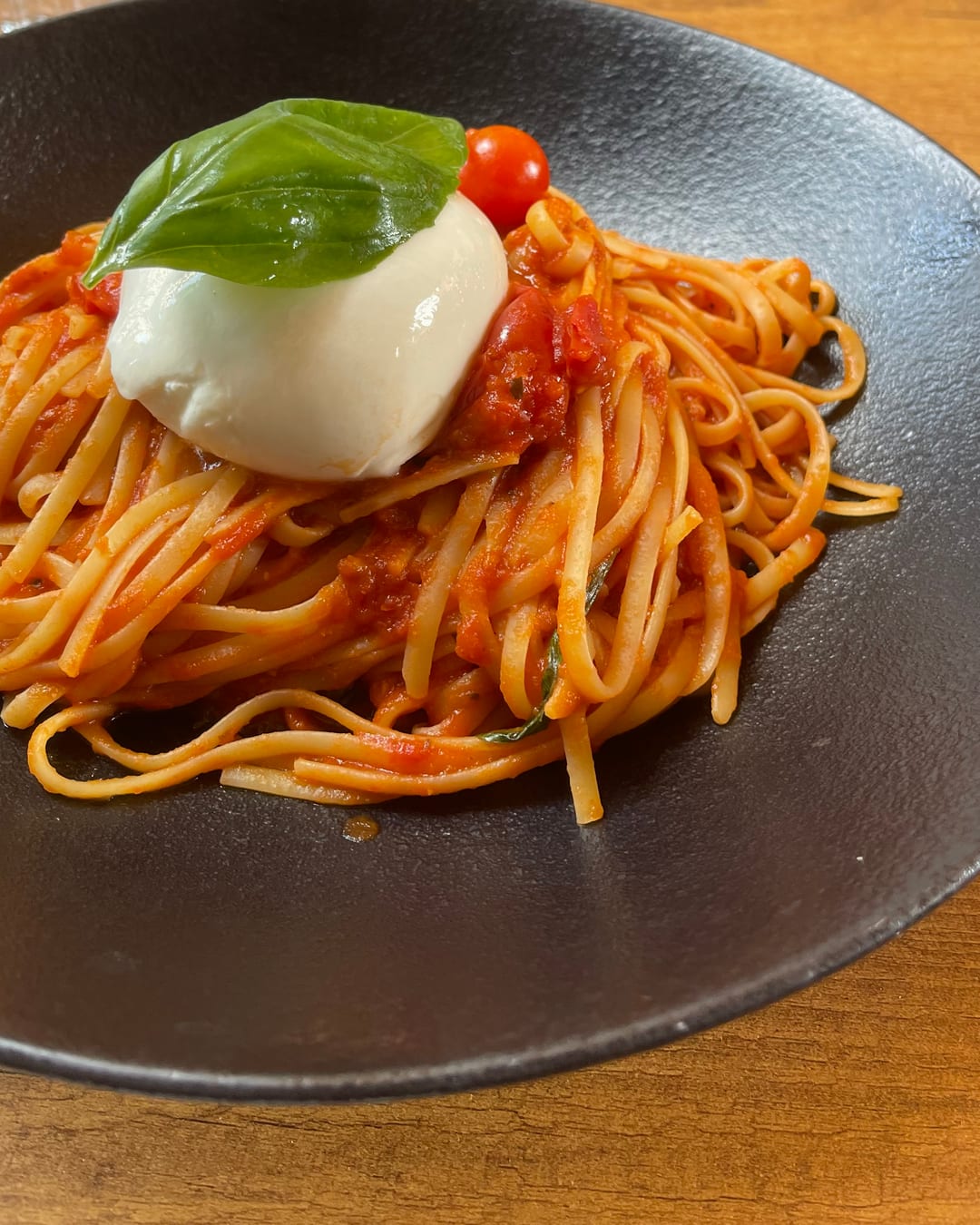
Give the headline its own space
Linguine pomodoro,
meet burrata.
1. Choose the photo and the message
Decide what someone should understand after swiping. For this example, the message is simple: linguine pomodoro served with burrata and basil. We have one source photo and the product facts supplied with the Luce Pasta demo.
- One usable photo. Pick a sharp image that shows the product clearly. Confirm you can publish it, including any identifiable people. Add a second photo only if it shows a useful detail or different view.
- A short fact list. Here: linguine pomodoro, fresh burrata and basil. The photo also shows a cherry tomato. The supplied brief does not confirm a price, sourcing story or current ordering link.
- Simple brand rules. Choose your colours, heading font and tone. The teaching layouts use cream, orange and short, plain sentences.
- A design editor. Use one that lets you place images and text, duplicate a canvas and export the slides. Keep the caption in a separate note.
For clothing, your fact list might contain confirmed fabric and care details. For home goods, it might contain dimensions and materials. Use the facts for your own product rather than borrowing this example’s claims.
2. Write the slide copy first
A carousel needs a sequence, not a fixed number of slides. This photo supports a short introduction, the ingredients and a save prompt. Three slides are enough; a fourth slide repeating the same idea would add little.
| Slide | Purpose | Exact copy |
|---|---|---|
| 01 | Introduce the dish | Linguine pomodoro, meet burrata. |
| 02 | Name the details | What’s on the plate Tomato-coated linguine · Fresh burrata · Basil |
| 03 | Give one next action | Save it for pasta night. |
Read the copy in order before designing. Each slide should move the reader forward. An ordering prompt would need confirmed availability and a real ordering destination; a save prompt suits the evidence we have here.
A brief you can adapt
Create a short carousel for [audience] about [product]. Show [one message]. Use [verified facts] and the attached photos. Keep the product’s appearance unchanged. Follow [colours, fonts and voice]. Do not invent prices, availability, benefits or sourcing claims. End with [one action].
Use this as a writing checklist when working manually, or as a brief for a generator. In either case, compare the draft with your fact list before using it.
3. Build a layout that keeps the product visible
Create three canvases at the same size. For this layout, use a 4:5 portrait canvas, such as 1080 × 1350 pixels. This is a design starting point; check the platform’s current upload preview before publishing.
To reproduce the cover, reserve roughly the lower third for the headline panel and fit the whole photo into the area above it. On a 1080-pixel-wide canvas, start with about 60 pixels of panel padding and a 72-pixel bold headline. Adjust these design settings until the words fit comfortably; they are not platform limits.
- Keep the photo intact. Scale it to fit the image area. Leave space around it if needed; avoid cutting off the product or changing its appearance.
- Put the headline on a solid panel. The burrata is the focal point. Keeping words below the photo lets the reader see it.
- Reuse the same type and colours. Give the text room to breathe. Shorten the copy if it only fits at a size you cannot read on your phone.
Linguine pomodoro,
meet burrata.
01 · Photo + introduction
02 · Verified details
03 · A save prompt
Compare the original demo cover
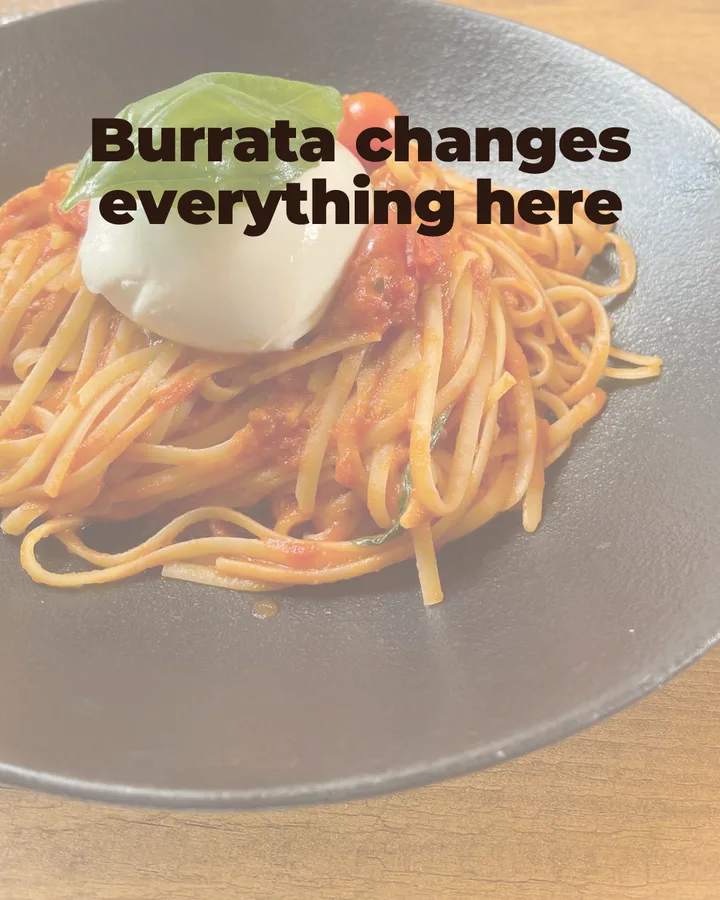
The original cover adds a pale overlay and places “Burrata changes everything here” over the burrata. The teaching layout keeps the photograph’s colour and moves the headline into its own panel.
The saved five-slide demo also includes unverified serving advice and the line “Burrata cools the heat.” We left those out of this tutorial. A generated draft still needs review against the brief.
4. Add the caption and export in order
Use the caption to connect the details and the action. Here is an editorial draft based on the same supplied facts:
Tomato-coated linguine, fresh burrata and basil on one plate. Save this combination for your next pasta night.
For your own post, add a current product link or buying instruction only when you can verify it. Check hashtags too: the saved demo used freshpasta, but its brief did not establish that the pasta was made fresh.
Need clear writing rules before drafting your caption? Define your brand voice for social media with an audience, preferred language, example captions and a review checklist.
- Export all three slides at the same dimensions. Use ordered filenames:
01-cover.png,02-details.pngand03-save.png. - Keep the caption beside them in
caption.txtor your post notes. These are suggested filenames, not downloads provided by this page. - Reopen the exported files on your phone. Check readability, image quality and the edges of each slide.
- Inspect the slide order and crop in Instagram’s upload preview. Add an image description for each slide where the upload controls support it.
5. Check the complete post
Review the exported slides and caption together before publishing.
- I have permission to publish the photos, and the product remains recognisable.
- The slides follow one message; each adds a useful detail or action.
- The copy, caption and hashtags use only facts I can support.
- The text is readable on my phone and the design follows my brand rules.
- The exported slides share one size; the upload preview has the right order and crop.
- The closing action is appropriate, and any buying link or availability claim is current.
Explore Zoisial’s demo
Zoisial is a social content generator for small brands, built around your own photos and brand rules for voice, colours and typography. Explore the saved examples to see the workflow alongside the manual approach above.
Explore sample carousels and the creation walkthrough. No account required.
Explore the demoPublic pilot intake is currently closed. Product access is not available through the demo.